- 2,188
- 2,694
Summary:
If you own an Android phone and are interested in helping me, please navigate to Settings → Sounds. Here, you will find the volume controls (in some phones, you will have an option "Volume" under which you will find all the controls). Please give me the following: a screenshot of the volume sliders (or a description, whichever is convenient for you), your device model and Android version.
Why I need this:
The volume keys in my phone (a Samsung Galaxy On7) are malfunctioning. I decided to write an app that will have all the volume controls. I will place it in my home screen and thus be able to quickly change the volumes instead of navigating to Settings.
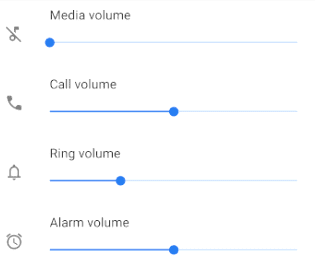
Now, I found that volume control in Samsung differs from original Android image provided by Google. In Samsung, there are separate sliders for Ringtone, Notification and System streams, while in the Google image, these three are clubbed together under "Ring volume":
I don't know about other devices.
When I am coding an app, it will be useless to write something that works on Samsung and not on other devices. With the information you provide, I will be able to customize my app such that it supports as many devices as possible.
N.B.: There are some apps available in PlayStore that do the same thing (or almost the same thing). I am interested in writing my own app because that way I will be able to gain some experience in Android programming.
If you own an Android phone and are interested in helping me, please navigate to Settings → Sounds. Here, you will find the volume controls (in some phones, you will have an option "Volume" under which you will find all the controls). Please give me the following: a screenshot of the volume sliders (or a description, whichever is convenient for you), your device model and Android version.
Why I need this:
The volume keys in my phone (a Samsung Galaxy On7) are malfunctioning. I decided to write an app that will have all the volume controls. I will place it in my home screen and thus be able to quickly change the volumes instead of navigating to Settings.
Now, I found that volume control in Samsung differs from original Android image provided by Google. In Samsung, there are separate sliders for Ringtone, Notification and System streams, while in the Google image, these three are clubbed together under "Ring volume":
I don't know about other devices.
When I am coding an app, it will be useless to write something that works on Samsung and not on other devices. With the information you provide, I will be able to customize my app such that it supports as many devices as possible.
N.B.: There are some apps available in PlayStore that do the same thing (or almost the same thing). I am interested in writing my own app because that way I will be able to gain some experience in Android programming.