rhody
Gold Member
- 680
- 3
I am posting this because I am sure there are plenty of other folks out there who have elderly parent's or relative's who want to use a PC, and are not all that savvy with them.
When they run into problems, getting competent help can be expensive, and time consuming, not to mention aggravating trying to get them to explain what is wrong with them over the phone to you.
This is the case with me and my elderly Mom.
I bought a new laptop for her (she being barely computer literate) to replace an old clunky slow one.
Had it shipped to my home, (Windows 7) installed Firefox, Skype, configured her g-mail account, antivirus sw, screen capture sw, etc... then searched for and found free peer to peer sharing software.
I used https://secure.logmein.com/US/products/free/" , I downloaded the client on my PC and the new laptop, ran the client and registered my e-mail and Mom's e-mail with the company.
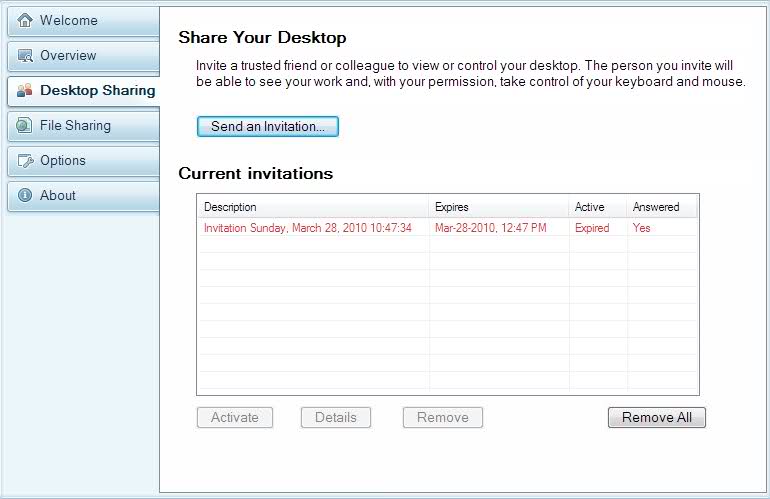
To use, simply, launch the logmein client, select desktop sharing/send an invitation and send the message.
On the other end, when Mom gets the e-mail she clicks on the accept link, and then I can share her desktop remotely, solving problems, giving instructions over the phone, all while controlling her computer.
It makes things a whole lot easier that way.
You don't have to use the one I choose, there are a bunch of them if you search on "free desktop sharing software".
The way most of them work is similar to what I just described.
In the future, I may have her put a microphone and webcam on her laptop so we can communicate using skype as well.
I cleaned off her desktop icons and left only the ones I want her to use in the toolbar, you do this by right clicking on the desktop and under view, show desktop icons, clear the checkbox. They are still there, but for simplicity sake, hidden for now.
If anyone has any other neat software to suggest for computer illiterates, feel free to post them here.
Good luck...
Rhody...
When they run into problems, getting competent help can be expensive, and time consuming, not to mention aggravating trying to get them to explain what is wrong with them over the phone to you.
This is the case with me and my elderly Mom.
I bought a new laptop for her (she being barely computer literate) to replace an old clunky slow one.
Had it shipped to my home, (Windows 7) installed Firefox, Skype, configured her g-mail account, antivirus sw, screen capture sw, etc... then searched for and found free peer to peer sharing software.
I used https://secure.logmein.com/US/products/free/" , I downloaded the client on my PC and the new laptop, ran the client and registered my e-mail and Mom's e-mail with the company.
To use, simply, launch the logmein client, select desktop sharing/send an invitation and send the message.
On the other end, when Mom gets the e-mail she clicks on the accept link, and then I can share her desktop remotely, solving problems, giving instructions over the phone, all while controlling her computer.
It makes things a whole lot easier that way.
You don't have to use the one I choose, there are a bunch of them if you search on "free desktop sharing software".
The way most of them work is similar to what I just described.
In the future, I may have her put a microphone and webcam on her laptop so we can communicate using skype as well.
I cleaned off her desktop icons and left only the ones I want her to use in the toolbar, you do this by right clicking on the desktop and under view, show desktop icons, clear the checkbox. They are still there, but for simplicity sake, hidden for now.
If anyone has any other neat software to suggest for computer illiterates, feel free to post them here.
Good luck...
Rhody...
Last edited by a moderator:
