Removing "Thingy" from my Taskbar

  • Thread starter Thread starter WWGD
  • Start date Start date
Click For Summary
SUMMARY

The discussion centers on removing the "Widgets" feature from the Taskbar in Windows 11 and the "News and Interests" feature in Windows 10. Users confirmed that right-clicking on the Taskbar and selecting "Turn off" for these features effectively removes them. Additionally, participants shared tips on using the Snipping Tool or Snip & Sketch for capturing screenshots instead of relying on the basic Paint program. The Windows key + Shift + S shortcut for snipping was also highlighted as a useful feature introduced in the Windows 10 Creators Update (version 1703).

PREREQUISITES
  • Understanding of Windows 10 and Windows 11 Taskbar settings
  • Familiarity with the Snipping Tool and Snip & Sketch applications
  • Knowledge of keyboard shortcuts in Windows operating systems
  • Basic troubleshooting skills for software features
NEXT STEPS
  • Research how to disable Widgets in Windows 11 Taskbar settings
  • Learn to use the Snipping Tool and Snip & Sketch for efficient screenshot capturing
  • Explore keyboard shortcuts for enhanced productivity in Windows
  • Investigate additional Taskbar customization options in Windows 10 and 11
USEFUL FOR

Windows users, IT support professionals, and anyone looking to customize their Taskbar settings or improve their screenshot capabilities.

WWGD
Science Advisor
Homework Helper
Messages
7,773
Reaction score
13,008
TL;DR
Want to remove a system entity from my Taskbar, but don't know its name.
Hi All,
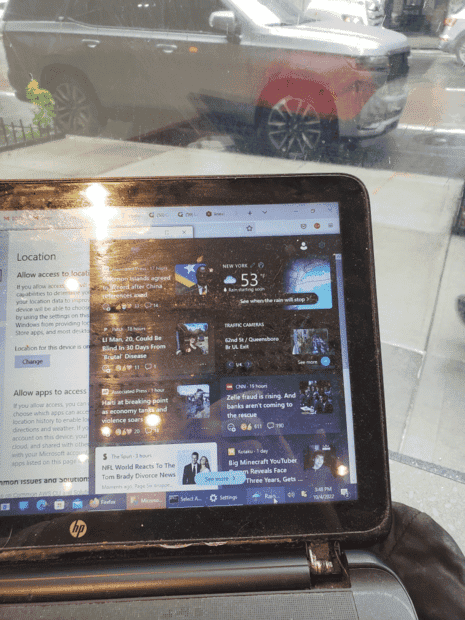
Trying to remove the entity in the right half of the screenn from my Taskbar : ( Post continues below pic)

1664914376444.png


Problem is I don't know it's name. Anyone? If you can help me 3D-Print the car on top, even better ;).
Edit: I've checked Taskbar Settings , where its not listed; right-clicked on it, which does not give me the option to close it/remove it.
 
Last edited:
Computer science news on Phys.org
It's called spam :wink:

Actually its not clear what it is - possibly "Widgets"; you can turn this off in Taskbar Settings. Or it might be some app; right click on it and select "remove from taskbar".
 
  • Like
Likes   Reactions: WWGD
pbuk said:
It's called spam :wink:

Actually its not clear what it is - possibly "Widgets"; you can turn this off in Taskbar Settings. Or it might be some app; right click on it and select "remove from taskbar".
I've tried. I've gone into settings/Taskbar, I don't see anything resembling it mentioned. Right-clicking on the image doesn't give me anything either.
Edit: I'll irewrite my original to nclude whst I've tried so far.
 
How are we supposed to tell what you're talking about? Can't you do a print screen and circle it?

Is it that little icon that looks like an umbrella and says "rain"?

Is that the Windows Weather app? Have you tried looking in the Taskbar settings for it?
 
WWGD said:
right-clicked on it, which does not give me the option to close it/remove it.
That sounds exactly like Widgets which you can turn off in Taskbar Setttings.
1664920109222.png
 
  • Like
Likes   Reactions: WWGD
pbuk said:
Actually its not clear what it is
1664920747833.png
 
  • Like
Likes   Reactions: WWGD
right click taskbar->news and interests->turn off
 
  • Like
  • Informative
Likes   Reactions: symbolipoint, WWGD and pbuk
russ_watters said:
right click taskbar->news and interests->turn off
Oh yes, news and interests in Win10, widgets in Win11.
 
  • Like
Likes   Reactions: WWGD and russ_watters
Thanks All,
It came down to r-clicking on the Taskbar, selecting "

20221004_204110.jpg
 
Last edited:
  • #10
Well done. Next thing to look up is how to snip a rectangle instead of the whole screen :smile:
 
  • Like
Likes   Reactions: robphy, russ_watters and WWGD
  • #11
pbuk said:
Well done. Next thing to look up is how to snip a rectangle instead of the whole screen :smile:
My Paint program is the basic one that comes from Windows, and its not too flexible; copied the entire web page, including tabs. I ended up using my phone camera, sent it to my PC, and copied it into PF.
 
  • #12
WWGD said:
My Paint program is the basic one that comes from Windows, and its not too flexible; copied the entire web page, including tabs. I ended up using my phone camera, sent it to my PC, and copied it into PF.
Don't need Paint.
1:
1664930485116.png

2:
1664930517929.png

3: Ctrl-V directly into PF editor.
 
  • Like
Likes   Reactions: WWGD
  • #13
DaveC426913 said:
Don't need Paint.
1:
View attachment 315043
2:
View attachment 315044
3: Ctrl-V directly into editor.
Thanks. Id had a sort of electronic curse, where my desktop background had randomly changed colors to where I could barely see the screen, then the icons in my Taskbar were so huge I couldn't r-click, as there was no open space to do so, all among other fun surprises.
 
  • #14
Next lesson: Hiding bookmarks before taking screen grabs.

1664931645000.png
 
  • Like
  • Haha
Likes   Reactions: davenn, robphy, pbuk and 1 other person
  • #15
DaveC426913 said:
Next lesson: Hiding bookmarks before taking screen grabs.

https://www.physicsforums.com/attachments/315048
Thank you. I had pasted the wrong pic. Now fixed.
 
  • #16
But I worked so hard on post 14... :(
 
  • Haha
  • Like
Likes   Reactions: hutchphd, Tom.G and WWGD
  • #18
russ_watters said:
Also, windows key+shift+s
:eek:
How long has that existed??
 
  • #19
DaveC426913 said:
:eek:
How long has that existed??
Since Windows 10 Creators Update (version 1703), public release in 2017 I believe.
 
  • #20
I think it is the Microsoft Start app. Try right-click on the task bar, select or hover over "News and interests", select "Turn off". That made mine go away.
 
  • Like
Likes   Reactions: WWGD
  • #21
WWGD said:
My Paint program is the basic one that comes from Windows, and its not too flexible; copied the entire web page, including tabs. I ended up using my phone camera, sent it to my PC, and copied it into PF.
Find and learn to use "Snipping Tool" or "Snip & Sketch". Much neater than trying to use MS Paint!
 

Similar threads

  • · Replies 14 ·
Replies
14
Views
3K
  • · Replies 104 ·
4
Replies
104
Views
7K
  • · Replies 2 ·
Replies
2
Views
5K
  • · Replies 4 ·
Replies
4
Views
2K
  • · Replies 4 ·
Replies
4
Views
4K
Replies
21
Views
5K
  • · Replies 3 ·
Replies
3
Views
2K
  • · Replies 10 ·
Replies
10
Views
3K
  • · Replies 7 ·
Replies
7
Views
3K
  • · Replies 53 ·
2
Replies
53
Views
3K