Android Linear Layout: Insert Up to 6 Images Easily

  • Thread starter Thread starter whitehorsey
  • Start date Start date
  • Tags Tags
    Android Linear
Click For Summary
SUMMARY

This discussion focuses on implementing a linear layout in Android to manage up to six images dynamically. The proposed solution utilizes two vertical LinearLayouts to create rows, with images added programmatically using the LinearLayout's layout parameters to ensure equal distribution of space. The code provided includes methods for adding and removing images, demonstrating how to manage image views effectively within the layout. The suggested approach is to use LinearLayout with weights for optimal image placement.

PREREQUISITES
  • Understanding of Android LinearLayout structure
  • Familiarity with Java programming for Android development
  • Knowledge of Android XML layout files
  • Experience with handling onClick events in Android
NEXT STEPS
  • Explore Android ListView for dynamic image management
  • Learn about Android RecyclerView for more efficient image handling
  • Investigate Android layout weights for responsive design
  • Study Android image loading libraries like Glide or Picasso
USEFUL FOR

Android developers, UI/UX designers, and anyone looking to enhance their skills in dynamic image management within Android applications.

whitehorsey
Messages
188
Reaction score
0
I'm using linear layout to make two so that I can insert up to 6 images. For example, if I have one image it will fit in the center of that layout if I have two it will divide the space equally for the two images, etc.

So far I have this,

<LinearLayout
android:id="@+id/row1"
android:layout_width="wrap_content"
android:layout_height="wrap_content"
android:layout_alignBottom="@+id/space"
android:orientation="vertical" >

<LinearLayout
android:id="@+id/row2"
android:layout_width="wrap_content"
android:layout_height="wrap_content"
android:layout_marginBottom="17dp"
android:layout_marginLeft="60dp"
android:orientation="vertical" >
</LinearLayout>
</LinearLayout>

I used two vertical linear layouts to make the rows. How do I tell the images to fit the box if there's one, to split equally if there's two, etc.?

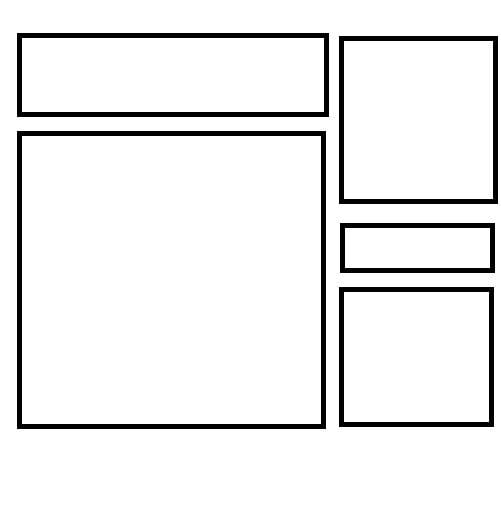
I'm placing the linear layout (rows) in the biggest box (first column second box).
linearlayout.jpg
 
Technology news on Phys.org
Since I'm late I'll just give you the answer.

This is better done with a ListView, but following the way you want to do it, I would just add weight to each image during run-time. All images are added programatically in a linear vertical layout so they will occupy space in a vertical manner. Since they are fixed we use 6 variables, but you can use a list or an array. Before I give you the code, here is a screenshot of the resulting code. If this is not what you want, then there is no need to read any further. Still, I think you can use it and customize it to your needs.

XjCwDGq.gif

Inside the first column second box layout you will add:
Code:
    <LinearLayout
        android:id="@+id/ImagesLinearLayout"
        android:layout_width="fill_parent"
        android:layout_height="0dip"
        android:layout_weight="0.50"
        android:orientation="vertical" >

    </LinearLayout>

    <LinearLayout
        android:id="@+id/ControlsLinearLayout"
        android:layout_width="match_parent"
        android:layout_height="wrap_content"
        android:orientation="vertical" >

        <Button
            android:id="@+id/addImageButton"
            android:layout_width="wrap_content"
            android:layout_height="wrap_content"
            
            android:onClick="addNewImage"
            android:text="Add New Image" />

        <Button
            android:id="@+id/removeImageButton"
            android:layout_width="wrap_content"
            android:layout_height="wrap_content"
            android:onClick="removeOneImage"
            android:text="Remove 1 Image" />
    </LinearLayout>

Then, in your activity class corresponding to that layout you will declare the images and layouts as private variables:

Code:
        private ImageView image1;
	private ImageView image2;
	private ImageView image3;
	private ImageView image4;
	private ImageView image5;
	private ImageView image6;
	private LinearLayout imagesLinearLayout;
	private LinearLayout.LayoutParams layoutParameters;

In the onCreate() method you will initialize the imagesLinearLayout and layoutParameters as follows:

Code:
                //Initialize our box that will contain the images
		imagesLinearLayout = (LinearLayout) findViewById(R.id.ImagesLinearLayout);
		
		//Initialize the information that will divide our images equally 
		//in our linear layout (regardless of whether it is vertical or horizontal)
		layoutParameters = new LinearLayout.LayoutParams(LayoutParams.MATCH_PARENT, LayoutParams.MATCH_PARENT, (float) 1);

The addImage(View view) method for the onClick() event declared in the xml:

Code:
               if(image1 == null){
			//Initialize image 1
			image1 = new ImageView(this);
			
			//Set image 1 source
			image1.setImageResource(R.drawable.ic_launcher);
			
			//Adds image 1 to view with our layout parameters so the image
			//looks equally divided in space
			imagesLinearLayout.addView(image1, layoutParameters);
			
		}
		else if(image2 == null){
			image2 = new ImageView(this);
			image2.setImageResource(R.drawable.ic_launcher);
			imagesLinearLayout.addView(image2, layoutParameters);
		}
		else if(image3 == null){
			image3 = new ImageView(this);
			image3.setImageResource(R.drawable.ic_launcher);
			imagesLinearLayout.addView(image3, layoutParameters);
		}
		else if(image4 == null){
			image4 = new ImageView(this);
			image4.setImageResource(R.drawable.ic_launcher);
			imagesLinearLayout.addView(image4, layoutParameters);
		}
		else if(image5 == null){
			image5 = new ImageView(this);
			image5.setImageResource(R.drawable.ic_launcher);
			imagesLinearLayout.addView(image5, layoutParameters);
		}
		else if(image6 == null){
			image6 = new ImageView(this);
			image6.setImageResource(R.drawable.ic_launcher);
			imagesLinearLayout.addView(image6, layoutParameters);
		}
		else{
			//Add code specifying that no more images can be added
		}

The removeOneImage(View view) method for the onClick() event declared in the xml:

Code:
                boolean removeComplete = false;
		//Remove images starting from the last one added
		//until reaching the first;
		if(image6 != null && !removeComplete){
			imagesLinearLayout.removeView(image6);
			
			//Make image 6 null to prevent memory leaks
			//and to allow future use of this variable
			image6 = null;
			removeComplete = true;  //We are done.
		}
		
		if(image5 != null && !removeComplete){
			imagesLinearLayout.removeView(image5);
			image5 = null;
			removeComplete = true;
		}
		if(image4 != null && !removeComplete){
			imagesLinearLayout.removeView(image4);
			image4 = null;
			removeComplete = true;
		}
		if(image3 != null && !removeComplete){
			imagesLinearLayout.removeView(image3);
			image3 = null;
			removeComplete = true;
		}
		if(image2 != null && !removeComplete){
			imagesLinearLayout.removeView(image2);
			image2 = null;
			removeComplete = true;
		}
		if(image1 != null && !removeComplete){
			imagesLinearLayout.removeView(image1);
			image1 = null;
			removeComplete = true;
		}


Wrapping up everything together, the whole code assuming the layout is called activity_main.xml and the code of that layout is called MainActivity.java:

activity_main.xml
Code:
    <LinearLayout xmlns:android="[PLAIN]http://schemas.android.com/apk/res/android"[/PLAIN] 
    xmlns:tools="[PLAIN]http://schemas.android.com/tools"[/PLAIN] 
    android:id="@+id/MainLinearLayout"
    android:layout_width="match_parent"
    android:layout_height="match_parent"
    android:orientation="vertical"
    android:paddingBottom="@dimen/activity_vertical_margin"
    android:paddingLeft="@dimen/activity_horizontal_margin"
    android:paddingRight="@dimen/activity_horizontal_margin"
    android:paddingTop="@dimen/activity_vertical_margin"
    tools:context=".MainActivity" >

    <LinearLayout
        android:id="@+id/ImagesLinearLayout"
        android:layout_width="fill_parent"
        android:layout_height="0dip"
        android:layout_weight="0.50"
        android:orientation="vertical" >

    </LinearLayout>

    <LinearLayout
        android:id="@+id/ControlsLinearLayout"
        android:layout_width="match_parent"
        android:layout_height="wrap_content"
        android:orientation="vertical" >

        <Button
            android:id="@+id/addImageButton"
            android:layout_width="wrap_content"
            android:layout_height="wrap_content"
            
            android:onClick="addNewImage"
            android:text="Add New Image" />

        <Button
            android:id="@+id/removeImageButton"
            android:layout_width="wrap_content"
            android:layout_height="wrap_content"
            android:onClick="removeOneImage"
            android:text="Remove 1 Image" />
    </LinearLayout>

</LinearLayout>

MainActivity.java:

Code:
import android.os.Bundle;
import android.app.Activity;
import android.view.Menu;
import android.view.View;
import android.widget.FrameLayout.LayoutParams;
import android.widget.ImageView;
import android.widget.LinearLayout;

public class MainActivity extends Activity {

	private ImageView image1;
	private ImageView image2;
	private ImageView image3;
	private ImageView image4;
	private ImageView image5;
	private ImageView image6;
	private LinearLayout imagesLinearLayout;
	private LinearLayout.LayoutParams layoutParameters;

	@Override
	protected void onCreate(Bundle savedInstanceState) {
		super.onCreate(savedInstanceState);
		setContentView(R.layout.activity_main);

		//Initialize our box that will contain the images
		imagesLinearLayout = (LinearLayout) findViewById(R.id.ImagesLinearLayout);
		
		//Initialize the information that will divide our images equally 
		//in our linear layout (regardless of whether it is vertical or horizontal)
		layoutParameters = new LinearLayout.LayoutParams(LayoutParams.MATCH_PARENT, LayoutParams.MATCH_PARENT, (float) 1);
	}

	@Override
	public boolean onCreateOptionsMenu(Menu menu) {
		// Inflate the menu; this adds items to the action bar if it is present.
		getMenuInflater().inflate(R.menu.main, menu);
		return true;
	}

	//Method to add a new image
	public void addNewImage(View view){
		if(image1 == null){
			//Initialize image 1
			image1 = new ImageView(this);
			
			//Set image 1 source
			image1.setImageResource(R.drawable.ic_launcher);
			
			//Adds image 1 to view with our layout parameters so the image
			//looks equally divided in space
			imagesLinearLayout.addView(image1, layoutParameters);
			
		}
		else if(image2 == null){
			image2 = new ImageView(this);
			image2.setImageResource(R.drawable.ic_launcher);
			imagesLinearLayout.addView(image2, layoutParameters);
		}
		else if(image3 == null){
			image3 = new ImageView(this);
			image3.setImageResource(R.drawable.ic_launcher);
			imagesLinearLayout.addView(image3, layoutParameters);
		}
		else if(image4 == null){
			image4 = new ImageView(this);
			image4.setImageResource(R.drawable.ic_launcher);
			imagesLinearLayout.addView(image4, layoutParameters);
		}
		else if(image5 == null){
			image5 = new ImageView(this);
			image5.setImageResource(R.drawable.ic_launcher);
			imagesLinearLayout.addView(image5, layoutParameters);
		}
		else if(image6 == null){
			image6 = new ImageView(this);
			image6.setImageResource(R.drawable.ic_launcher);
			imagesLinearLayout.addView(image6, layoutParameters);
		}
		else{
			//Add code specifying that no more images can be added
		}
	}

	//Method to remove one image
	public void removeOneImage(View view){
		boolean removeComplete = false;
		//Remove images starting from the last one added
		//until reaching the first;
		if(image6 != null && !removeComplete){
			imagesLinearLayout.removeView(image6);
			
			//Make image 6 null to prevent memory leaks
			//and to allow future use of this variable
			image6 = null;
			removeComplete = true;  //We are done.
		}
		
		if(image5 != null && !removeComplete){
			imagesLinearLayout.removeView(image5);
			image5 = null;
			removeComplete = true;
		}
		if(image4 != null && !removeComplete){
			imagesLinearLayout.removeView(image4);
			image4 = null;
			removeComplete = true;
		}
		if(image3 != null && !removeComplete){
			imagesLinearLayout.removeView(image3);
			image3 = null;
			removeComplete = true;
		}
		if(image2 != null && !removeComplete){
			imagesLinearLayout.removeView(image2);
			image2 = null;
			removeComplete = true;
		}
		if(image1 != null && !removeComplete){
			imagesLinearLayout.removeView(image1);
			image1 = null;
			removeComplete = true;
		}

	}
}

That's it.
 
Last edited by a moderator:

Similar threads

  • · Replies 3 ·
Replies
3
Views
3K
  • · Replies 3 ·
Replies
3
Views
4K
  • · Replies 2 ·
Replies
2
Views
7K
  • · Replies 1 ·
Replies
1
Views
3K
  • · Replies 4 ·
Replies
4
Views
5K
  • · Replies 3 ·
Replies
3
Views
2K
  • · Replies 25 ·
Replies
25
Views
6K
  • · Replies 1 ·
Replies
1
Views
4K
  • · Replies 1 ·
Replies
1
Views
4K
  • · Replies 1 ·
Replies
1
Views
3K