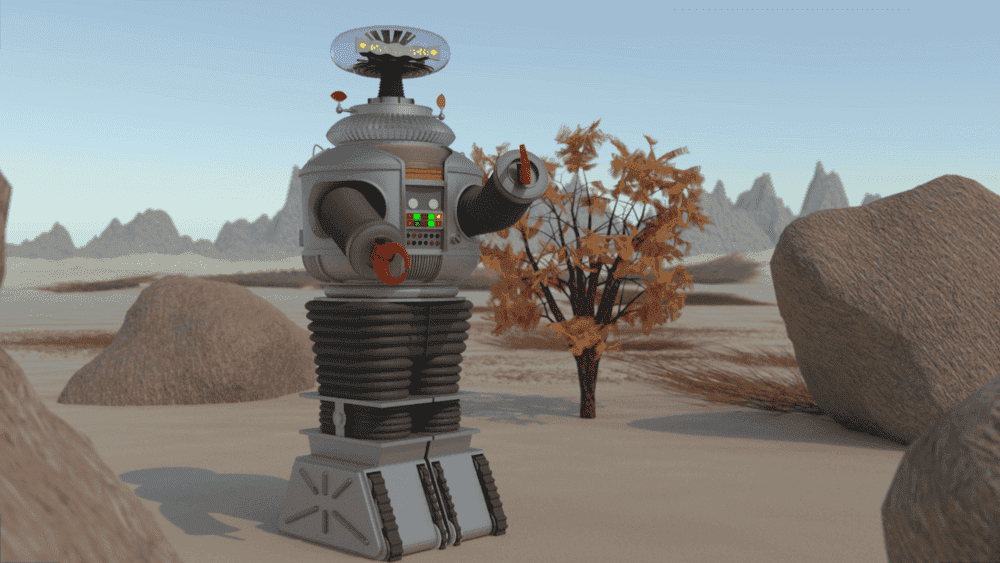
So, Just a bit back Blender released a new version. Along with some performance improvements came some helpful new features. One in particular is the "shadow catcher pass"
It has a number of uses, but one in particular is very helpful in certain situations.
This is when you are using an HDRI in your render. At the very basic level, an HDRI gives you a background n which you can place your modeled objects. But it goes beyond that.
1. It is panoramic. If you place a camera in your scene, and then tilt or pan it, the background rendered in the camera changes appropriately. If you place a reflective object in it, that object will accurately reflect everything as if it was actually in that environment.
2. It contains lighting information. If you place an modeled object into a scene with an HDRI, it will be lit by the HDRI in a way that matches the way the HDRI scene itself is lit.
This is really nice if you want to put your model into a life-like scene.
However, there is one drawback. The HDRI is still just a background. You can place an model so that it looks like it is sitting on the ground, but while it will be lit and shaded properly, it won't cast a shadow on that "ground", and the result looks like a bad photo shop.
I played around with ideas to how to get around this limitation.
My first attempt was to set up the scene with a white plane where the ground was, have the model cast a shadow onto it, take the rendered image into a paint program and carefully erase everything in the scene but the shadow. Re-render the scene without the plane, and save that image. Take the two images and layer them together, with the "shadow" image on top, with its transparency level adjusted so that it darkens the image just the right amount where the shadow should be cast.
It worked, and gave a result that passed muster( if you didn't look too close)
Then I started to learn how to use the compositor in blender. This is a "node" tree that allows you to add various post-rendering effects to a scene. This included mixing together various inputs, including images.
This made the process a bit easier. It still involved rendering so that a shadow would be cast onto a white plane, but it didn't require me to carefully trace out the shadow like before, and also allowed me to layer the shadow effect directly in blender without having to do it with separate software.
However, This method had its drawbacks also. you needed everything in the "shadow alone" image that wasn't shadow to be pure white. If the lighting in the HDRI wasn't white light, it would color the plane. Also, sometimes the lighting would be noisy. In addition, the white plane couldn't always hide all of the HDRI background, so you still had to use a paint program to paint these parts of the image white.
All in all, while still better than the previous, method, it was still tedious in some respects. And if you decided afterwards that you weren't happy with the camera angle etc, you'd have to do a good deal of the process over again.
But now, due to the shadow catcher pass, things have gotten much better.
You still use a plane for the model to cast the shadow on. But now you click an option to make it a shadow catcher mask. You also go into the render settings and add a shadow catcher pass. What this does it cause Blender to do a second rendering pass, one that only captures the data of the shadow cast onto the plane. ( If you were to render an image from this, it would be an image that is white everywhere except where the shadow is cast. Exactly what we where trying to do before, but accomplished by simply clicking a box)
When you render the scene now, the model will render, but everywhere the shadow catching plane is, you get a transparency. You'll still see any of the HDRI background that isn't hidden by the plane, but this is easily remedied by making the plane wide, and adding a "back wall" to it to make sure all the background is hidden*
Now we add a second scene (There is a place to do this, and it also allows you to toggle back and forth between scenes.) The second scene only contains a camera and the HDRI background. (And you can just copy and paste these from the first scene.)
Now we open the compositor. It should already have a render input node assigned to the first scene. Add a second render input, and assign it to the second scene you created.
Each of these nodes have outputs on them. The second scene will have an image output, and a couple of others, which we don't need. The first scene has an additional output labeled shadow catcher, and this is how you access the shadow catcher pass.
Create a "mix" node, and set the type to multiply. Take the image output of the 2nd scene and the shadow catcher output of the first scene and feed them into the two image inputs of the mix node.
This takes the shadow pass image and uses it to control the darkness of the HDRI image. Everywhere the shadow pass is white, you just see the background unaltered. Everywhere is is not white darkens the background by an amount determined by how far from white it is.
Create a new mix node. by default it is set to mix, and that's what we want. Take the image output and feed it to one of the image inputs of the mix node. Take the image output of the first mix node and feed it into the other image input.
Take the output from the first scene labeled "alpha" and feed it to the factor input of the mix node. Alpha is a measure of transparency, so doing this tells the combined image, "Everywhere there is transparency in the first scene's image, put the background image, and everywhere it isn't, put the first scene's image.
Take the image output from this mix node and feed it to the output node.
Now you just render the scene.
Here's an example, using models of Gumby and Pokey that I had previously made, and an HDRI of Zhengyang gate (I used it because the lighting gives a good shadow, and the ground is a nice and flat.)
Not only does this allow for a faster and easier method for creating this effect, but is so much easier to make changes. Before, if I wanted to move the models in the scene, change the camera angle, change the orientation of the HDRI, or change the HDRI entirely, I would have made the changes, rendered new shadow mask images and do the necessary alterations to them, put them into the compositor set up and re-render the image. Now I can just make the changes, and directly render the new result.