To create an interactive GUI in MATLAB for calculating and plotting the kinematics of a robot arm, start by typing "guide" in the MATLAB command prompt to access the GUI creation tool. Familiarize yourself with MATLAB's graphics object handles, which are essential for manipulating figures, axes, and plots using the get() and set() commands. Understanding the hierarchy of graphics objects—figures, axes, and plots—is crucial for effective GUI design. Additionally, implementing callback functions will enhance interactivity, allowing users to input values and change the robot's position dynamically. Exploring the "Creating GUI" section in MATLAB's help documentation is recommended for further guidance.
#1
yaang
22
0
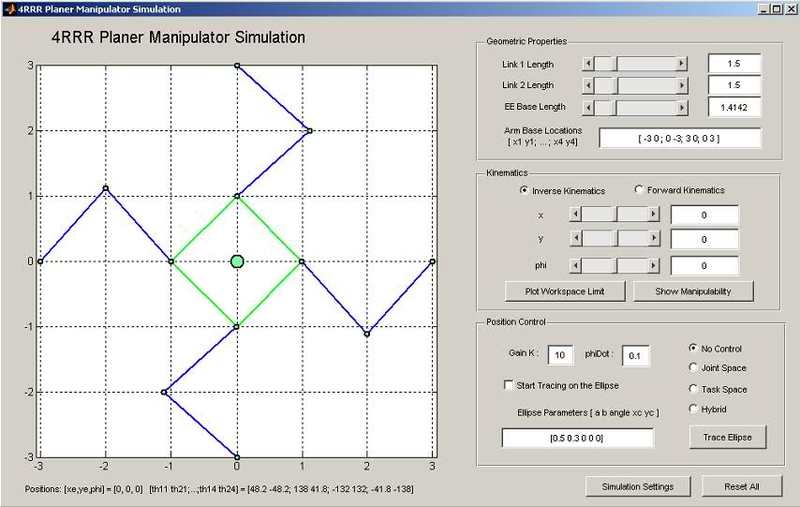
I'm supposed to write a MATLAB code where it calculates kinematics of a robot arm and plots it. But the plot is required to have a way of user entering different values and be able to change position of the robot. I think i can handle the kinematics behind it but i have no idea how to make an interactive gui like that in matlab. Basically i want to code something like this
but mine is going to be much more simple of course. Can someone recommend me some reading on this subject so i can figure this out ?
Hai to start with type "guide" in MATLAB command prompt. It will take you to creating new GUI that suits your application.
You have to read "Creating GUI" in Matlab help first before proceeding !
#3
yaang
22
0
thanks that was quite useful
#4
swraman
165
0
To give you a mini lesson on the way MATLAB handles figures (gui objects):
MATLAB deals with all graphics objects as Handles. If you don't know what that is, a Handle is a reference to a set of data. In the case of graphics objects in MATLAB, these handles are all simply double precision numbers.
To access or set any properties of any graphics, you have to use the get()/set() command, along with the handle to the graphics object you are referencing.There are 3 "levels" of graphics objects in MATLAB:
Figure - the highest level. It is the window that any graphics objects you create go in. eg:
Code:
>> f = figure
creates an empty figure. f is now set to a handle to the figure you created. To see what kinds of properties figures have, use:
Code:
>> get(f)
Its a good idea to look at what this returns, so you can see what sorts of properties are stored in the figure handle. It stores data like the size of the figure, and other general properties.
Axes - The second level is the "child" of the figure, the axes. each axes is ALWAYS created in a figure (Matlab will create one if you create an axes without specifying a figure). The Axes is the "place" for plots, text, labels, and any other graphics object in MATLAB.
Code:
>> f = figure
a = axes;
This will create a figure then an axes in that figure. to see what sorts of things are stored in axes, use
Code:
>> get(a)
This will list all properties in the axes, its a good idea again to see what's there to understand what sort of things go into axes.
One thing to notice is the "parent" and "child" fields in axes/figures. In the code above, you created an axes in a figure. Now, if you run
Code:
>> child = get(f,'children');
% child==a will be true
it will return a handle to the axes you created - the same handle as a.
Graphics objectsThe last level of graphics objects are the actual graphics objects - plots, text, etc. Again, if you create a plot:
Code:
f = figure;
a = axes;
p = plot(1,1);
now a has a child (the plot p) so if you run:
Code:
child = get(a,'children')
child will point to the same plot as p. Again, it is a good idea to use get(p) to see what sort of things go in a graphics object.
Ive bored you enough with this stuff - it really is the most annoying part of MATLAB imo, but just remember you use get() and set for everything.
jsut realized I haven't used set to set anything, here's a simple way to resize the figure f:
Code:
>> set(f,'position',[1,1,400,500]);
this will set the figure to begin at the [1,1] pixel on your screen and end at the [400,500] pixel (from the bottom left of your screen).
if makign an interactive GUI wuy will also need to look into callback functions, as they are important to any gui.
 but mine is going to be much more simple of course. Can someone recommend me some reading on this subject so i can figure this out ?