Can You Easily Upgrade the RAM in an Older Desktop PC?

  • Thread starter Thread starter Saladsamurai
  • Start date Start date
  • Tags Tags
    pc Ram Stupid
Click For Summary

Discussion Overview

The discussion revolves around upgrading the RAM in an older desktop PC, specifically addressing concerns about compatibility, installation difficulty, and brand recommendations. Participants explore the technical aspects of RAM types, installation processes, and potential performance improvements.

Discussion Character

  • Exploratory
  • Technical explanation
  • Debate/contested
  • Mathematical reasoning

Main Points Raised

  • One participant notes that 256 MB of RAM is small compared to modern standards, referencing their Macbook with 4GB.
  • Another suggests searching for the specific make and model of the PC to find the maximum RAM capacity, recommending the Dell site or crucial.com for this information.
  • Concerns about the installation difficulty of RAM are raised, with some participants asserting that it is generally easy, especially for Dell models, which may not require a screwdriver.
  • Participants discuss the types of RAM that might be compatible with older PCs, speculating that it could be DDR or DDR2, and mention the need to install RAM in pairs.
  • One participant emphasizes the importance of ensuring RAM compatibility with the motherboard and mentions the potential for static electricity damage during installation.
  • There are varying opinions on RAM brands, with some suggesting that cheaper options are sufficient for home use, while others note that more expensive RAM may offer better reliability and performance features like ECC.
  • One participant advises checking the sticker on the current RAM for specifications to determine the type needed for replacement.

Areas of Agreement / Disagreement

Participants generally agree that upgrading RAM is feasible and can improve performance, but there is no consensus on specific brands to avoid or the importance of features like ECC. The discussion includes multiple viewpoints on installation ease and RAM compatibility.

Contextual Notes

Participants express uncertainty about the exact specifications of RAM needed for older systems and the implications of different RAM types and brands. There are also unresolved questions regarding the performance impact of various RAM characteristics.

Who May Find This Useful

Individuals looking to upgrade the RAM in older desktop PCs, particularly those with Dell models or similar configurations, may find this discussion helpful.

Saladsamurai
Messages
3,009
Reaction score
7
Okay; so here is a screenshot of my PCs (it is a desktop) info.
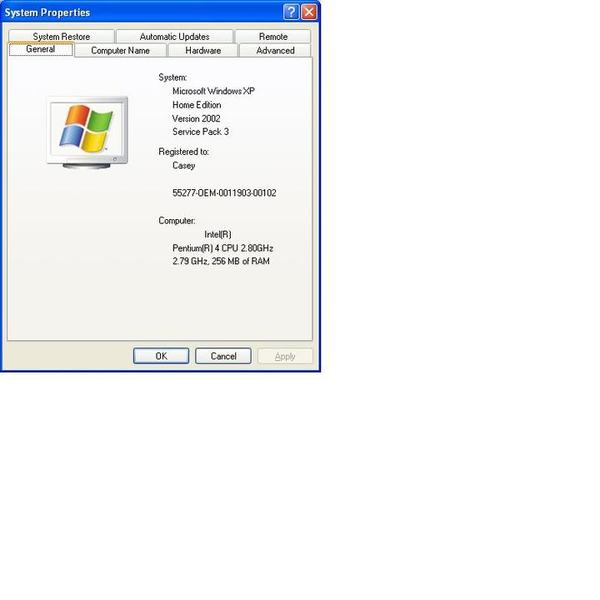
RAM.jpg


Here is what I want to know:

1) 256 MB is pretty small isn't it? My Macbook has 4GB

2.) Where can I look to see if I can fit more RAM in my PC? I assume that is not the max I can fit?

3.) Assuming I am not 100% retarded and I know what a screwdriver looks like, is it at all difficult to install the RAM? (I have a DELL)?

...Is it like the RAM in a laptop (i.e., are they sticks that just "pop" in)?

Casey
 
Computer science news on Phys.org
Do a google search for the precise make and model of your PC. Odds are that on the first page of results will be a link to the Dell site where you can access the manual for your computer. You should be able to find out the maximum amount of RAM your computer can hold from there.

Alternatively, try crucial.com. You should be able to input the model of your Dell there and it will tell you the maximum amount of RAM your machine can take.
 
Thanks for the reply.

These are not too difficult to install eh?
 
http//www.crucial.com has a web page that will tell you exactly what type your machine takes (they are also a very good place to buy)
Or you can go to dell/support and enter the service tag - but don't buy the ram from dell ($$$$$)
Guessing the age of your computer it could take either DDR or DDR2 , you generally also have to fit pairs of sticks so you might have to throw out the ones you've got.
RAM is incredibly cheap at the moment, so sticking 1 or 2Gb will give you a great speedup for $20-30.
Fitting is easy, all you have to do is put them the correct way round - there is a little notch in the connector so you can't get it wrong. Dells are generally very easy to work on, you don't even need a screwdriver - once you have worked out which pit of plastic to press to pop the case open.
 
mgb_phys said:
http//www.crucial.com has a web page that will tell you exactly what type your machine takes (they are also a very good place to buy)
Or you can go to dell/support and enter the service tag - but don't buy the ram from dell ($$$$$)
Guessing the age of your computer it could take either DDR or DDR2 , you generally also have to fit pairs of sticks so you might have to throw out the ones you've got.
RAM is incredibly cheap at the moment, so sticking 1 or 2Gb will give you a great speedup for $20-30.
Fitting is easy, all you have to do is put them the correct way round - there is a little notch in the connector so you can't get it wrong. Dells are generally very easy to work on, you don't even need a screwdriver - once you have worked out which pit of plastic to press to pop the case open.

Cool thanks! I went to crucial.com and found out what I need.

Many different brands with prices that vary greatly. Any brands I should stay away from?
 
Not really, there are only 2-3 actual makers. The price difference is how well they are tested, for a home machine I buy the cheapest value RAM - for work I buy crucial's cheapest or one-up-from bottom own brand.
 
RAM is very easy to install, with the caveat that it must be compatible with your motherboard (the memory controller specifically). It comes in very friendly 'modules', which fit into slots on the motherboard in exactly one way.

http://upload.wikimedia.org/wikipedia/en/b/bc/DIMMs.jpg

800px-3SDRAM-DIMMs.jpg


You simply push apart the latches at the ends of the slot, gently push the module into the slot all the way down, then close the latches to hold it in.

You will want to be careful with static electricity - you can destroy your motherboard with your finger, if there's enough charge built up. Avoid dry weather, wool socks, and discharge any static before handling unshielded electronics - touching a grounded conductor, like the interior of the computer case, will work. It's not hard - I've never destroyed anything with static yet.

Opening a case can be mechanically tricky with brand-name PCs. There's several screws you'll need to unscrew (see your manual). And sometimes there can be sharp metal edges inside - watch out. There is not much space inside a computer, so if you drop a screw it will get lost and give you a headache - magnetic screw tips are useful.

On rare occasions, new memory can be DOA (broken out of the box), which can cause your computer to mysteriously fail to turn on. The usual troubleshooting method should save you - replace the DIMMs one by one to see which one is dead.

One last possible pitfall - watch what you touch inside the case, there are important little switches on the system board which you can accidentally bump into.

Good luck! Have fun!
 
Last edited by a moderator:
Many different brands with prices that vary greatly. Any brands I should stay away from?

Unfortunately, my knowledge is dated. There is a huge variation of performance for the same memory capacity - clock speed, access time (these are on the specs). There is also variation in reliability - more expensive memory will have hardware-level error detection and correction (labeled "ECC"). I'm sorry I can't help - I don't know how important ECC is today, or whether memory clock speed is a bottleneck on your system.
 
ECC requires that the memory controllers supports ECC in which case you generally can't use anything else. It's only common on servers and typically costs 2-3x as much.

Speed is part of the model number, eg DDR PC2700 - you can use any RAM that is faster (higher number) than this, most likely your 2.8Ghz P4 will take at least 2700 so any RAM made today will work.
The main difference is DDR (PC from 3-5years ago) or DDR2 (machine <3years old) - they have different notches in the connector so you can't insert the wrong one.
 
  • #10
To figure out which type or ram you need the easiest way is to just open your computer and look at the sticker on the current ram.

http://www.partstockpc.com/images/RAM.JPG

The last line on the sticker has the only information you will need when looking for new ram.

Seeing how your computer is from 2002 most likely you will need DDR, but again double check on the sticker which is on the current RAM you have. The sites aforementioned above are most likely the best bet for finding out how much RAM you computer can max out. Chances are if yours came with 256Mb, it can at least get maxed out to 768MB (that's one 512Mb stick in one and a 256Mb in the other or 3 256Mb sticks. If you happen to go with the first option make sure the larger stick of RAM replaces the old one and the smaller sticks go in the secondary slots).

In regard to brands, it really doesn't make a difference but for reliability go with kingston.
 
Last edited by a moderator:

Similar threads

  • · Replies 7 ·
Replies
7
Views
3K
  • · Replies 25 ·
Replies
25
Views
14K
  • · Replies 1 ·
Replies
1
Views
1K
Replies
13
Views
3K
  • · Replies 18 ·
Replies
18
Views
5K
Replies
20
Views
8K
  • · Replies 6 ·
Replies
6
Views
2K
  • · Replies 16 ·
Replies
16
Views
92K
Replies
10
Views
4K
  • · Replies 12 ·
Replies
12
Views
4K