Have you faced these odd problems with Windows 10 Professional v1909?

Click For Summary
SUMMARY

Windows 10 Professional v1909 is a feature update that introduced several issues, including the inability to change sleep timeout settings, missing brightness controls, and malfunctioning lid close/wake functionality. Users reported that the "Power and Sleep" settings lacked options for sleep configuration, while brightness controls vanished entirely from both hardware buttons and settings menus. After unsuccessful troubleshooting attempts, including BIOS checks and multiple restarts, one user opted to roll back the upgrade, restoring all missing settings. These problems appear to be linked specifically to the v1909 update.

PREREQUISITES
  • Understanding of Windows 10 settings and configurations
  • Familiarity with BIOS settings and their impact on system performance
  • Knowledge of Windows 10 update processes and rollback procedures
  • Experience with troubleshooting hardware and software issues in Windows
NEXT STEPS
  • Research Windows 10 update history and known issues for version 1909
  • Learn how to effectively roll back Windows updates and restore previous settings
  • Explore advanced troubleshooting techniques for Windows 10 power management settings
  • Investigate the impact of the May 2019 Update on brightness control features in Windows 10
USEFUL FOR

This discussion is beneficial for Windows 10 users, IT support professionals, and system administrators who encounter issues related to feature updates, particularly those affecting power management and display settings.

Wrichik Basu
Science Advisor
Insights Author
Gold Member
Messages
2,180
Reaction score
2,690
TL;DR
After an upgrade to Windows 10 v1909 build 18363 from v1809 build 17763, the brightness and sleep settings disappeared from my laptop.
Windows 10 v1909 is a feature update rather than a security update. Although it was not compulsory to upgrade, I decided to do it - getting something for free, who wants to decline it? I plugged in the laptop and it installed overnight. In the morning, I found that the upgrade was complete.

When I started working, I found three odd problems:
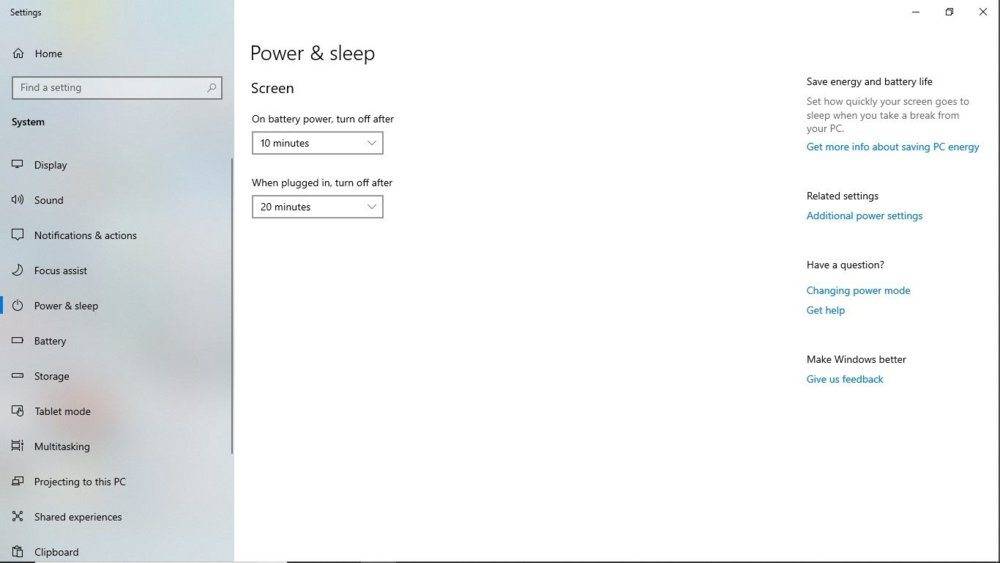
1. There was no option to change the sleep timeout settings. Under the "Power and Sleep" settings menu, the window normally shown is this one:​
power and sleep.jpg
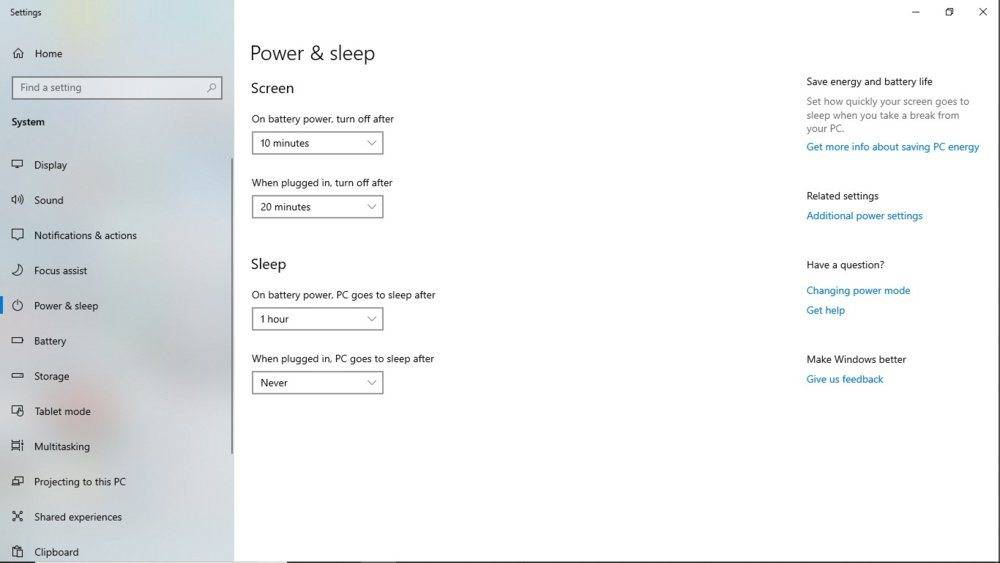
But I was shown this one, with no option to change the "Sleep" part of the settings:​
power and sleep2.jpg
I searched throughout the PC, but configuring sleep timeout was not present anywhere, be it under Control Panel\Hardware and Sound\Power Options or under "Power and Sleep".​
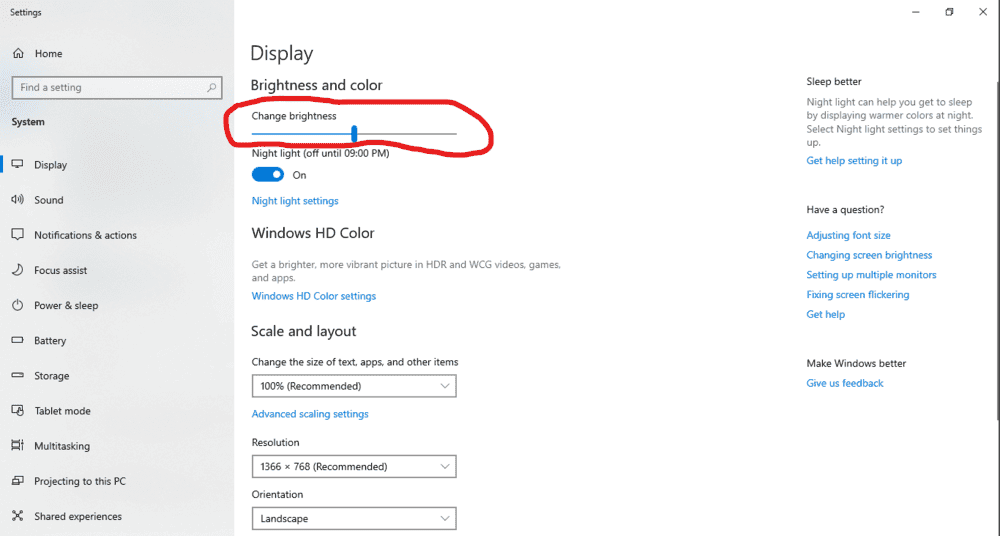
2. The brightness controls were no longer available. The hardware buttons were not working, neither was there any setting for brightness. It had vanished. In the following image, the circled part was just not there. The options started with "Night Light".​
1576701083321.png
3. Previously when I shut the lid of the laptop, it automatically went to sleep, and it would wake up as soon as I opened the lid. But now, it was going to sleep on closing the lid, but not waking up on opening the lid. I had to press the power button to wake it up.​
I went to Control Panel --> Hardware and Sound --> Power Options --> System Settings. Appropriately changing settings here too had no effect.​

I frantically started looking up the net for solutions to 1 and 2, but found absolutely nothing. It seemed that I was the first one to experience these odd problems. I checked the BIOS settings, and they were alright. In fact, I had not changed anything in BIOS prior or after the upgrade, so the only suspect was the upgrade.

Restarted a couple of times, but no luck. Checked for updates, but the latest were already installed.

Finally I had to rollback the upgrade. It took another 30 minutes, but now all my "vanished" settings are back. I am NOT doing that upgrade again.

Did anyone else ever face these issues?
 
Computer science news on Phys.org
I don't use windows anymore but yeah things can break or disappear following an update. Google just had a fiasco like that a few days ago with a chrome browser update. An oops moment.
 
Odd. I also have Windows 10 ver. 1909 and the sleep mode control is present in my PC (actually I have several PCs, but I have only inspected my my main workstation).

The "brightness" slider is missing on my PC too, but since I depend on my color profile being somewhat accurate, I never used it anyway.

There are some odd issues with 1909, I agree, but on my PC they are fairly esoteric (problems with "Perflib" and "AppModel-Runtime") and they do not interfere with my usage.
 
  • Like
Likes   Reactions: Wrichik Basu
Try using the search tool under Windows settings.

On my Chromebook (not Windows) I was surprised that wherever the keyboard has a dedicated function key (for example brightness) they eliminated the on-screen way to do the same thing.
 
anorlunda said:
Try using the search tool under Windows settings.

On my Chromebook (not Windows) I was surprised that wherever the keyboard has a dedicated function key (for example brightness) they eliminated the on-screen way to do the same thing.
It was not there. I tried using search.

The hardware buttons were not working too, so it seems that the option to change brightness was removed completely.
 
I think I found the explanation, and your solution.

https://www.onmsft.com/how-to/how-to-adjust-screen-brightness-in-windows-10 said:
With the release of the May 2019 Update, Microsoft brought back a brightness slider to the Action Center in Windows 10. But what if you’re on an older version of Windows? Here’s how you can adjust the brightness levels.
  1. Visit the classic Windows-7 Style Control Panel in Windows 10 by searching for Control Panel
  2. Click on the search bar in the Control Panel window and search for Brightness
  3. Click the result, and on the next screen, you should see a brightness slider at the bottom of the window.
One of the more controversial changes that came with older versions of Windows 10 was the new way in which the operating system handled screen brightness. Up until the release of the May 2019 Update, Windows users had been given a slider, in some shape or form, that allowed for the customization of a device’s screen brightness to any degree the user wanted. Need to bring the brightness down to 5%? Easy. In a room with unusual lighting and finding that 61% brightness is the best setting? Users could do that too.

In Windows 10 versions pre-dating the May 2019 Update, however, the slider has been replaced with a single button that cycles through 25, 50, 75, and 100% brightness with no option for anything in between. This button can be found in the Action Center which can be activated via swiping in from the right side of the screen on a Windows 10 device with a touch screen or by clicking on the Action Center icon in the Taskbar (the one that looks like a speech bubble).
 
  • Like
Likes   Reactions: Wrichik Basu

Similar threads

Replies
2
Views
3K
  • · Replies 12 ·
Replies
12
Views
4K
  • · Replies 123 ·
5
Replies
123
Views
19K
  • · Replies 92 ·
4
Replies
92
Views
9K
Replies
13
Views
4K
  • · Replies 10 ·
Replies
10
Views
6K
  • · Replies 16 ·
Replies
16
Views
2K
  • · Replies 1 ·
Replies
1
Views
2K
  • · Replies 7 ·
Replies
7
Views
4K
  • · Replies 3 ·
Replies
3
Views
3K