Science Advisor
Homework Helper
- 7,911
- 13,227
Hi All,
It seems SQL Server's Dev 2017 config manager does not come " built in" within , and it is now a snap in. When I try to install it through Control Panel, I get the error message: Cannot connect to WMI provider. You do not have permission or the server is unreachable.
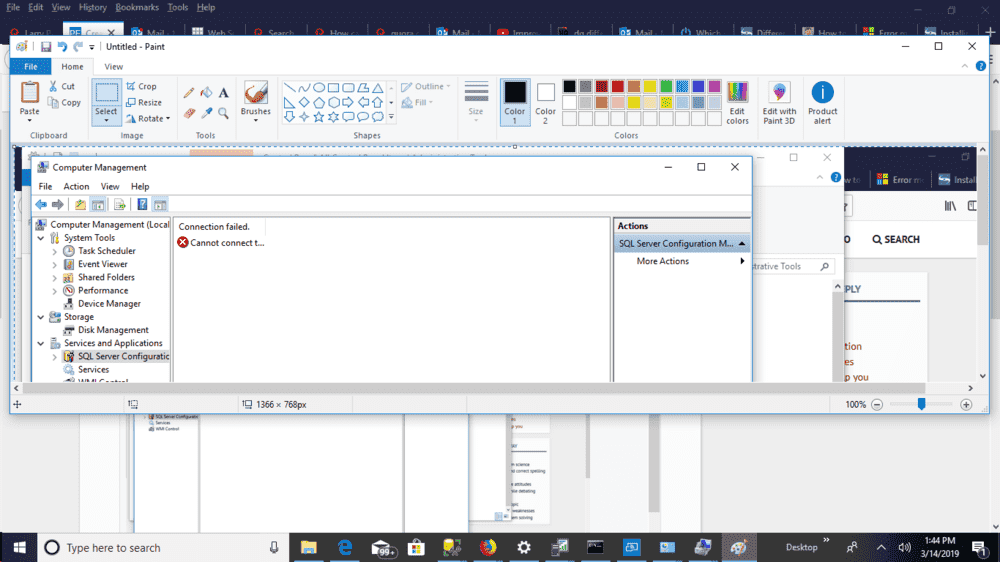
https://support.microsoft.com/en-us...en-sql-server-configuration-manager-in-sql-se
Suggests as a work around to go to the command line and enter:
mofcomp "%programfiles(x86)%\Microsoft SQL Server\number\Shared\sqlmgmproviderxpsp2up.mof" (**)
Where number is in the list given. BUT no numbers are assigned for versions after 2012. In my Microsoft SQL Server folder I have subfolders numbered 80,90, 110, 120, 140.
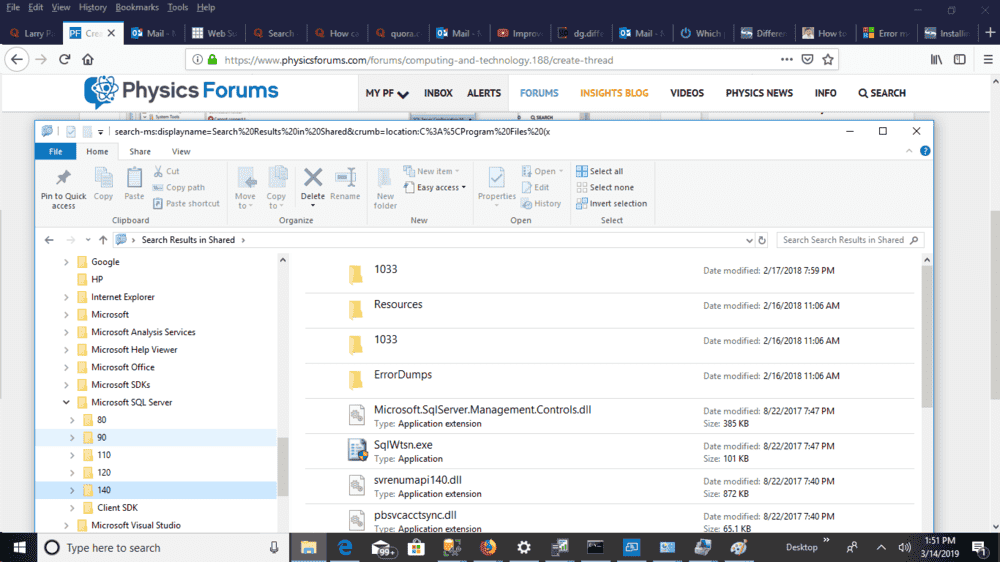
It would seem I should use 140 as a number in (**) above.
Is this correct?
In the page linked above, it says that the problem comes from having a 32-bit instance and another 64-bit instance, but both my instances are 64-bit.
Thanks.
EDIT: While we're at it, if someone knows how to filter within Profiler, I would appreciate any advice on how to do it.
It seems SQL Server's Dev 2017 config manager does not come " built in" within , and it is now a snap in. When I try to install it through Control Panel, I get the error message: Cannot connect to WMI provider. You do not have permission or the server is unreachable.
https://support.microsoft.com/en-us...en-sql-server-configuration-manager-in-sql-se
Suggests as a work around to go to the command line and enter:
mofcomp "%programfiles(x86)%\Microsoft SQL Server\number\Shared\sqlmgmproviderxpsp2up.mof" (**)
Where number is in the list given. BUT no numbers are assigned for versions after 2012. In my Microsoft SQL Server folder I have subfolders numbered 80,90, 110, 120, 140.
It would seem I should use 140 as a number in (**) above.
Is this correct?
In the page linked above, it says that the problem comes from having a 32-bit instance and another 64-bit instance, but both my instances are 64-bit.
Thanks.
EDIT: While we're at it, if someone knows how to filter within Profiler, I would appreciate any advice on how to do it.
Attachments


Last edited: