

Unity Orbital Mechanics and AR Scaling: Implementation Guide
In this Insight I describe implementing basic orbital mechanics simulations in the Unity game engine and an approach to scaling the simulation for Augmented Reality (AR) applications.
Unity is well suited for prototyping and animating physics models. Simulations become more interesting when you can watch interactions over time and see your formulas in action.
Table of Contents
Unity Game Engine — Key Points
- Unity is a great tool for prototyping games and animating physics models.
- Gravity simulations can be an engaging game-design mechanic.
- Unity includes built-in physics modules, but they aren’t designed for orbital mechanics out of the box.
- The “Gravity and Orbits — Solar System” package can be a useful starting point for an animating solar system.
- Generate forces in your update loop using an algorithm (direction, magnitude, combine) and apply them to each object’s Rigidbody component.
- You can scale an entire 3D world visually with a single “universe scaler” GameObject, but physics values (mass, initial force, etc.) must also be scaled for AR.
- Add a scaling script on each GameObject to scale transform.localScale and the Rigidbody mass (mass must scale with the cube of the scale factor).
- Initial speed and position offsets must be scaled as well.
- Unity is recommended for physics modeling and animation projects; it supports many platforms and is free to start with.
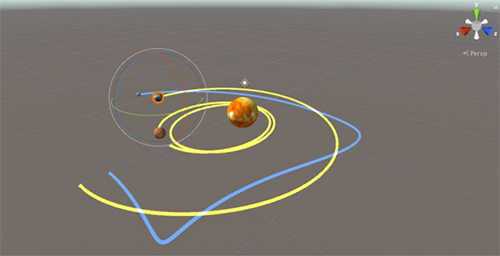
I’ve been developing games for over 30 years and, as a game developer, playing with gravity simulations has been a go-to design mechanic. I’ve always been fascinated by gravity — whether I’m scaling gravity in a game, riding mountain bikes, or shredding at the skatepark.
I recently worked on an AR game prototype that uses orbital mechanics as a gameplay mechanism.
One of the issues with AR is that users must be able to scale models so they appear the appropriate size relative to their real-world location. For example, a virtual object placed in a far corner of a room may look too small from the user’s current position. Conversely, if the open space is too close, the virtual object can appear far too large and spill beyond the display.
In non-AR applications you can set the scale and move the camera to render the scene at the right size. In AR the user is the camera — they physically move closer or farther from the object — so scale and physics both need to adapt at runtime.
Approach to Orbital Mechanics in Unity
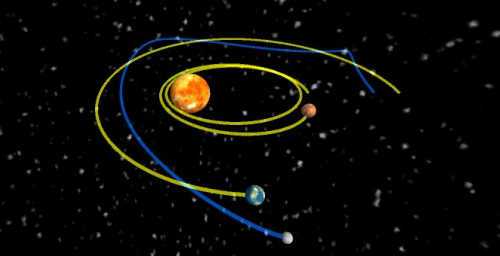
Unity’s built-in gravity (a constant downward acceleration) is designed for single-planet scenarios, not multi-body orbital mechanics. To simulate orbiting bodies, you need to compute and apply custom forces to each Rigidbody. The approach I used is:
- Generate forces applied to each object (planets/satellites) using:
- directionForce = (SunPosition – PlanetPosition) / distance;
- forceValue = (SunMass * SatelliteMass) / Math.Pow(distance, 2);
- force = GFactor * forceValue * directionForce;
- Apply the resulting force to the Unity Rigidbody component with Rigidbody.AddForce().
- Let the Rigidbody component determine movement and position updates from the applied forces.
// Example C# sketch: apply computed force to a Rigidbody
void ApplyGravitationalForce(Rigidbody rb, Vector3 force)
{
    if (rb != null)
        rb.AddForce(force);
}
Scaling the Solar System for AR
Scaling the visual size of planets is not enough for AR: distances, sizes, masses, and initial velocities must be scaled consistently. A common runtime approach is to avoid relying solely on a single parent “universe scaler” (which changes only transform inheritance). Instead, attach a scaling script to each planet GameObject that:
- scales the visual model via transform.localScale, and
- scales the Rigidbody mass by the cube of the scale factor.
Physics mass scaling formula
The physics mass scaling formula is:
newMass = originalMass * scaleFactor3
// scale the model’s transform (appearance) and its mass
void UpdateScale(float scaleFactor)
{
    transform.localScale = originalScale * scaleFactor;

    // scale the mass using the original mass stored at initialization
    Rigidbody rb = this.GetComponent<Rigidbody>();
    if (rb != null)
    {
        // Use stored originalMass (must be saved when object initialized)
        rb.mass = originalMass * Mathf.Pow(scaleFactor, 3);
    }
}
Initial speeds and position offsets must scale as well:
satellite.GetComponent<InitialSpeed>().speed = InitialSpeedConstant * scaleFactor;
Vector3 position = centerPlanet.transform.position + positionOffset * scaleFactor;
If you’re using the Gravity and Orbits Solar System package, avoid scaling the initial direction vector — doing so will incorrectly scale initial force magnitudes.
There are many ways to achieve runtime scaling; the approach above worked well for my prototype.
Unity is a great prototyping tool. Adding an animated orbital simulation to your project (PC, Mac, iOS, Android, etc.) makes the system easier to visualize and more engaging. I recommend Unity for modeling and animating physics projects — it’s free to download and straightforward to use.
FAQ
What is the Unity Game Engine?
Unity is a cross-platform game engine developed by Unity Technologies. It is used to create games and interactive content for web, desktop, consoles, and mobile devices.
What platforms does Unity support?
Unity supports a wide range of platforms including Windows, macOS, iOS, Android, Xbox, PlayStation, and Nintendo Switch.
How much does Unity cost?
Unity is available in several tiers. The Personal (free) plan is available for individuals and small businesses that meet the revenue limits. Pro and other paid tiers require a subscription fee.
What programming languages does Unity use?
Unity primarily uses C#. Historically, older Unity versions supported UnityScript (similar to JavaScript) and Boo, but modern Unity development should be done in C#.
What types of games can I create with Unity?
Unity can create many types of 2D and 3D games, including RPGs, FPSs, platformers, and more.

I’ve been developing games for over 30 years and as a game developer.






Similar: https://compphys.go.ro/newtonian-gravity/ but in C++ with OpenGL. Using Velocity Verlet.
Great insight! I especially liked the description of scaling factors and how they a codependent on one another requiring a more nuanced program design.
Unity is awesome, we did a unity simulation of Challenger Deep where the user could fly through the canyon using an Oculus Rift for one implementation and similar code for an Android tablet implementation.